Your first macro
Create a hotword in Makro and watch it expand into a full reply in any text box.
Click the Makro icon in your browser toolbar. The first time you open it, a short setup appears.
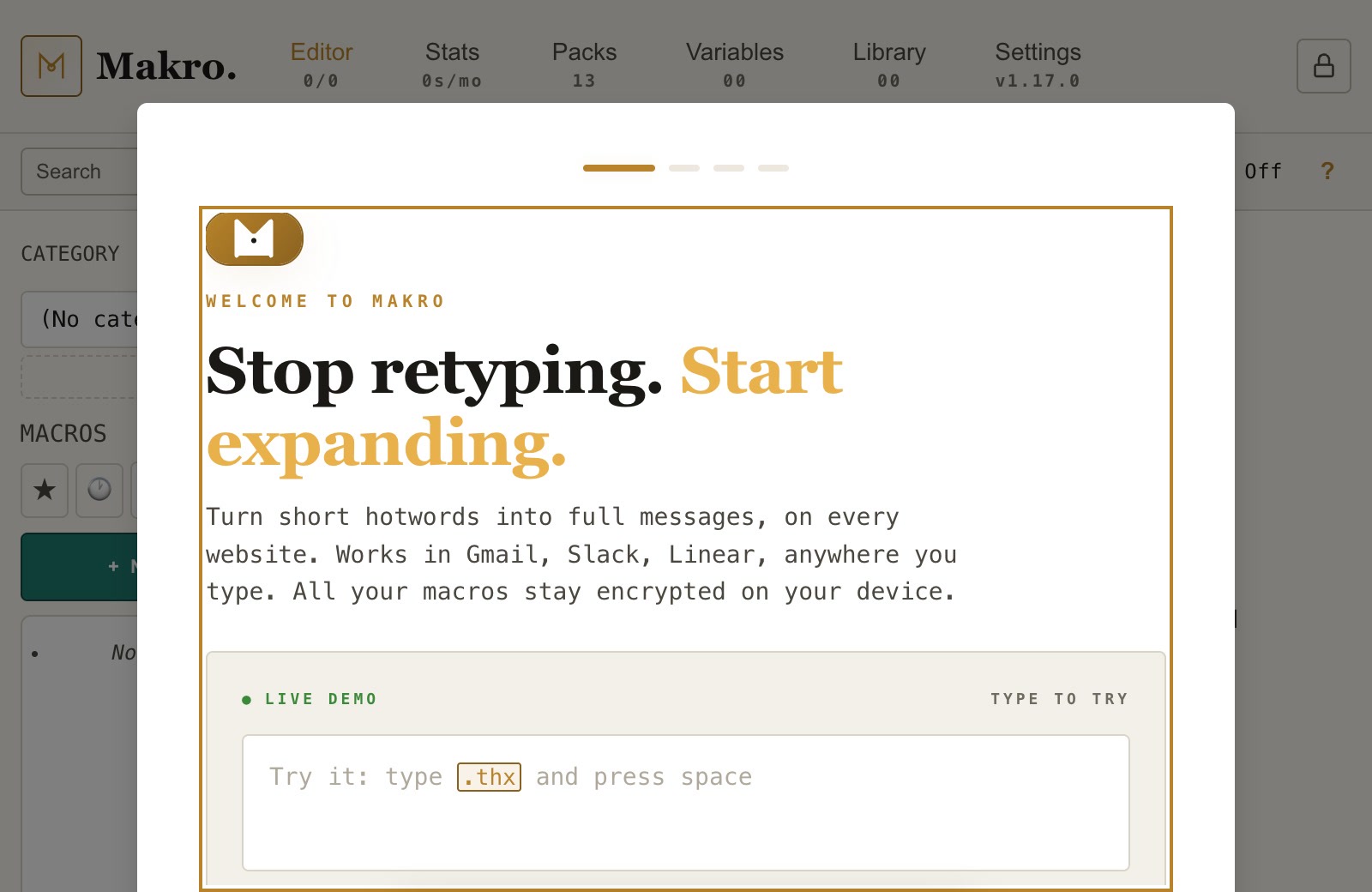
Choose "Skip", then "Continue", then "Start typing". You can add macro packs later from the Packs tab.
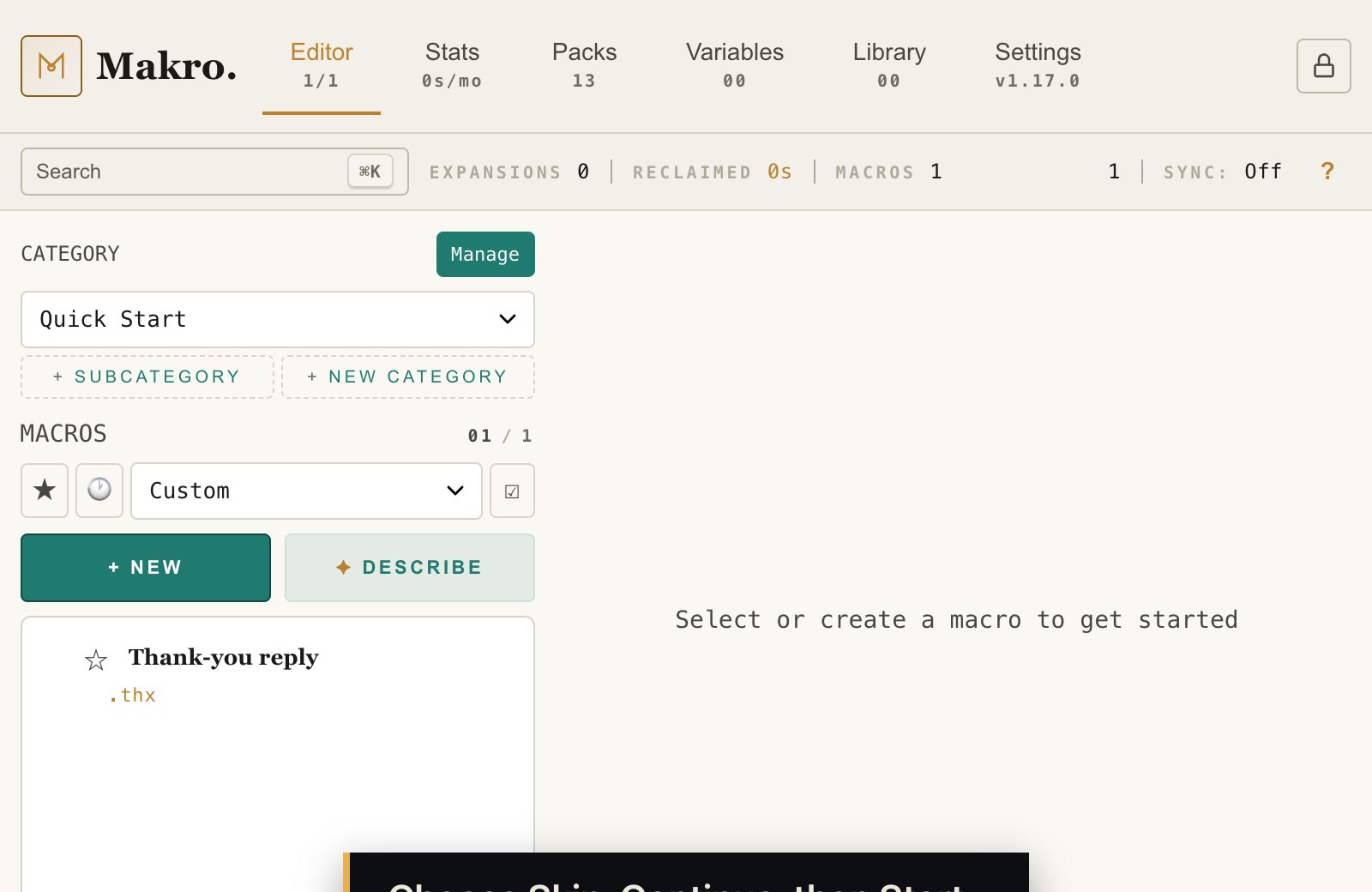
Click "+ New" to open a blank macro.
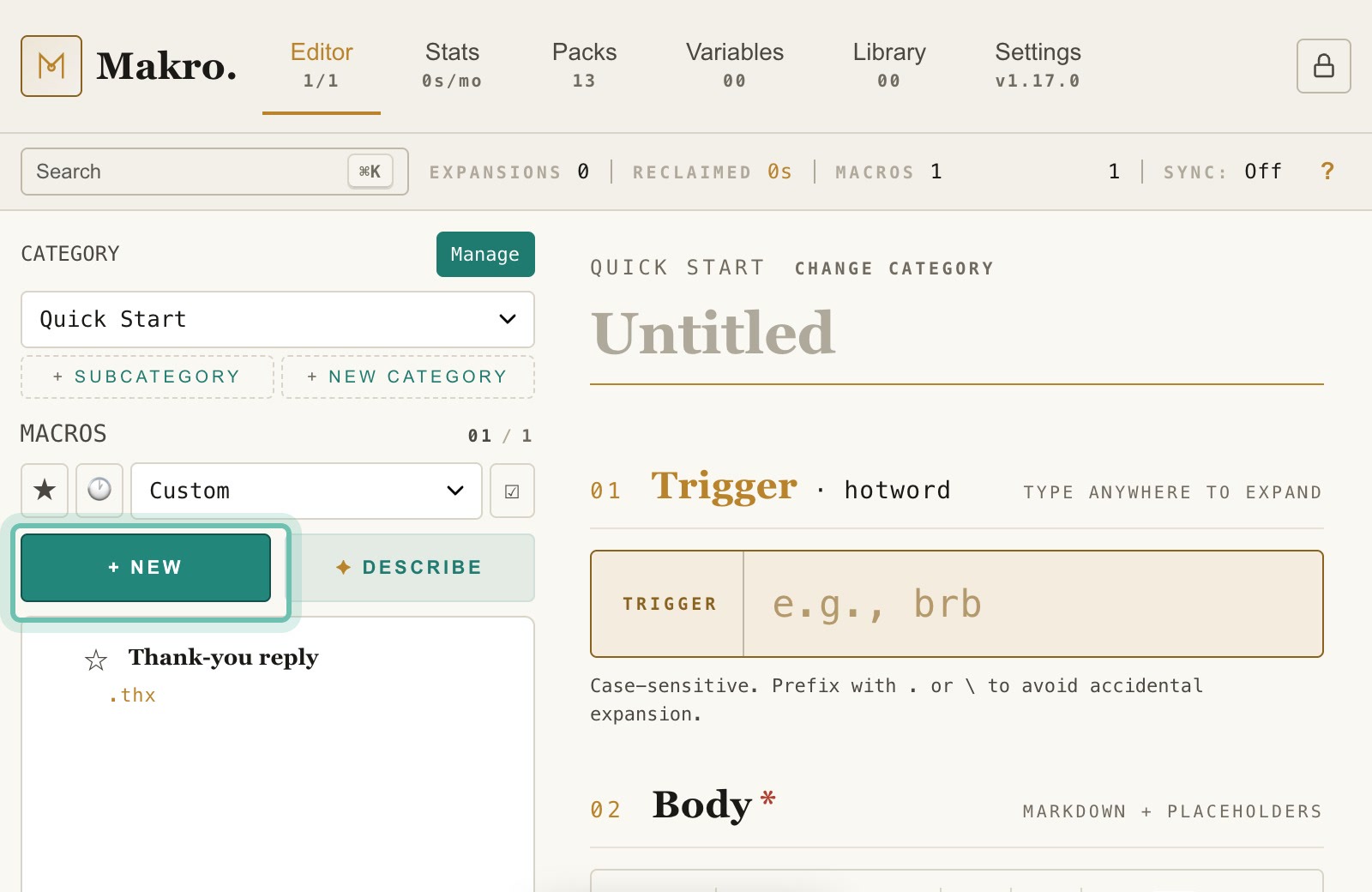
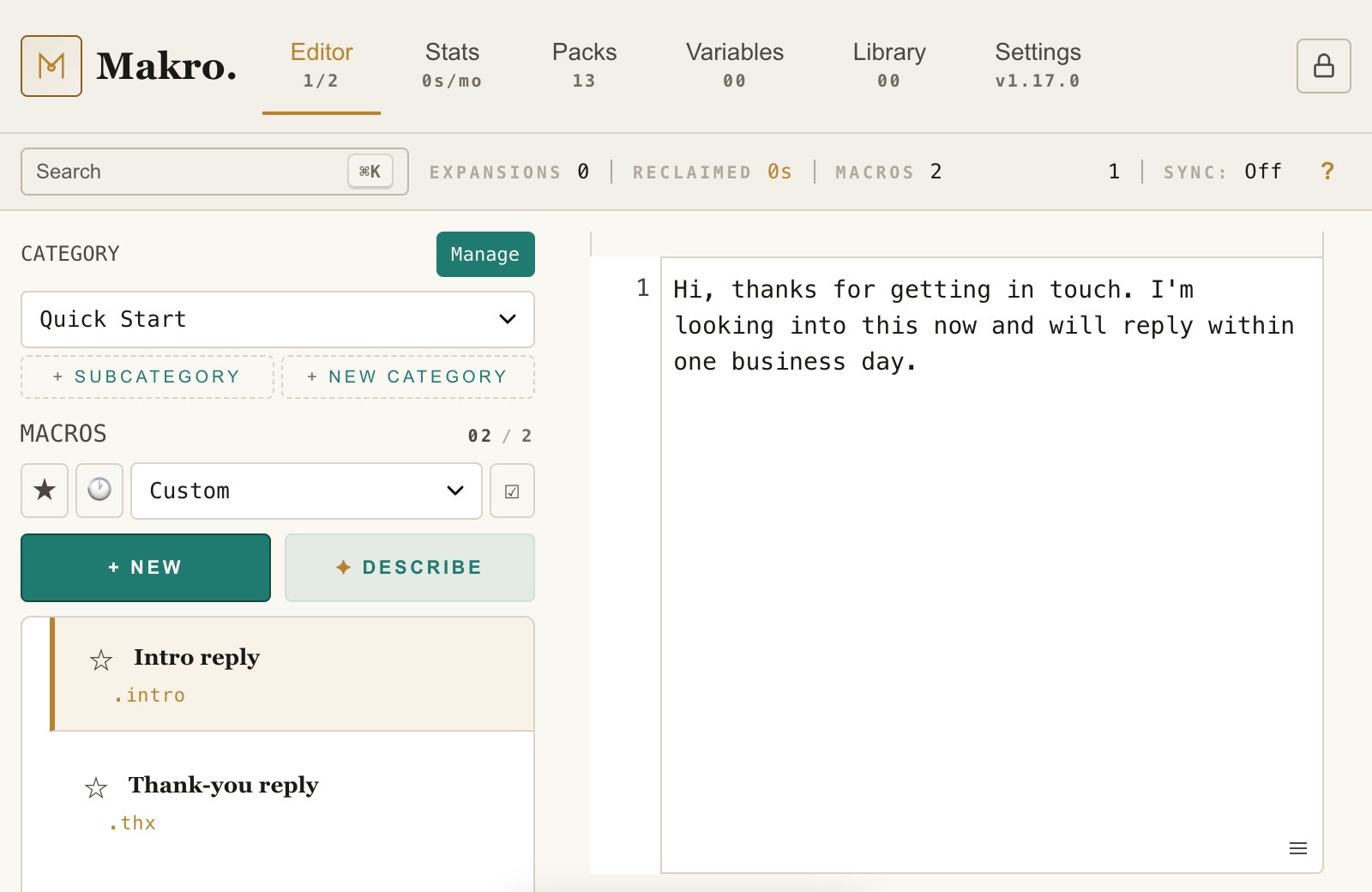
Give the macro a title, then a hotword. This example uses .intro. Starting hotwords with a dot stops them firing in the middle of normal words.
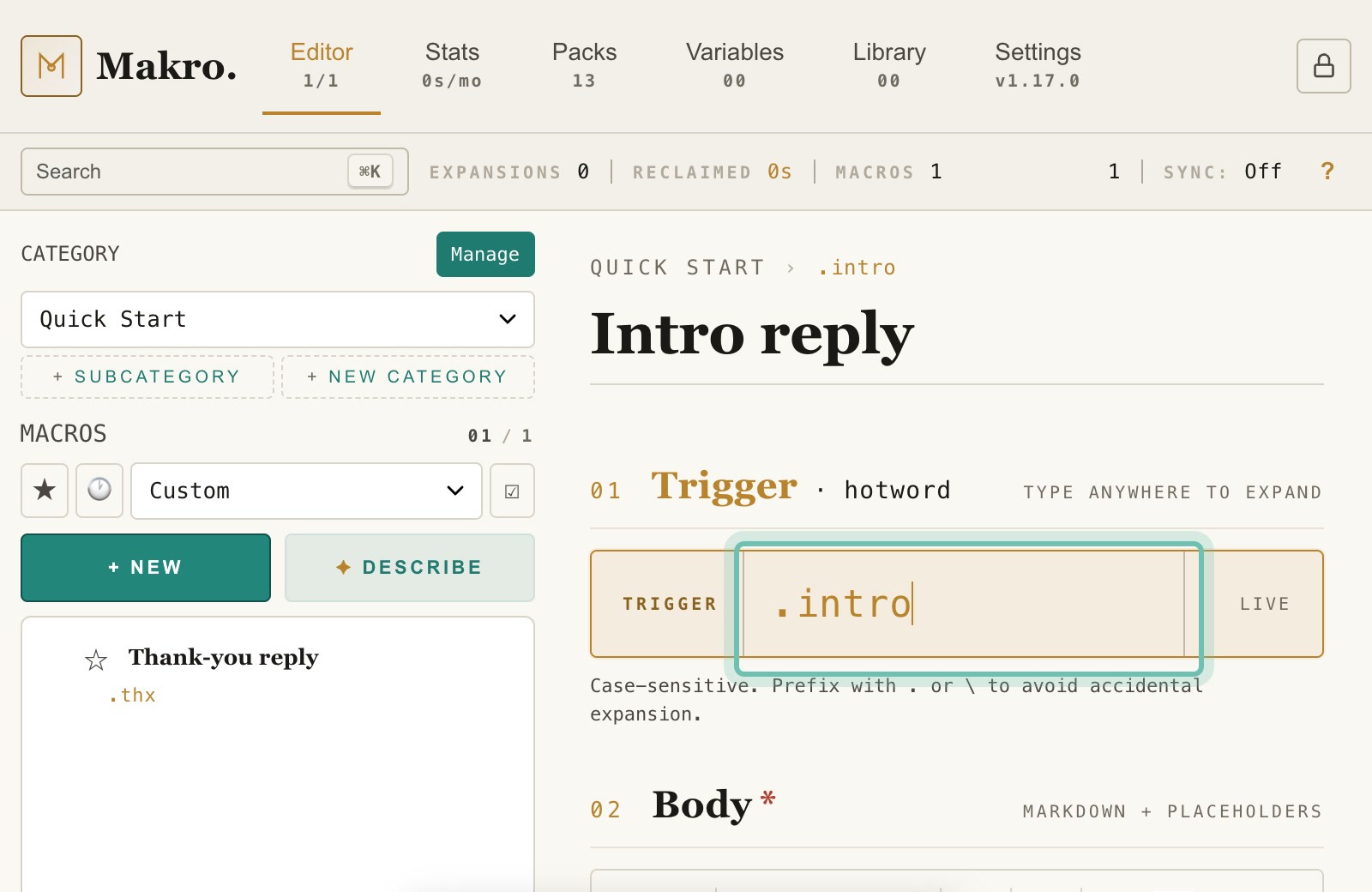
In the body, type the text you want the hotword to insert.
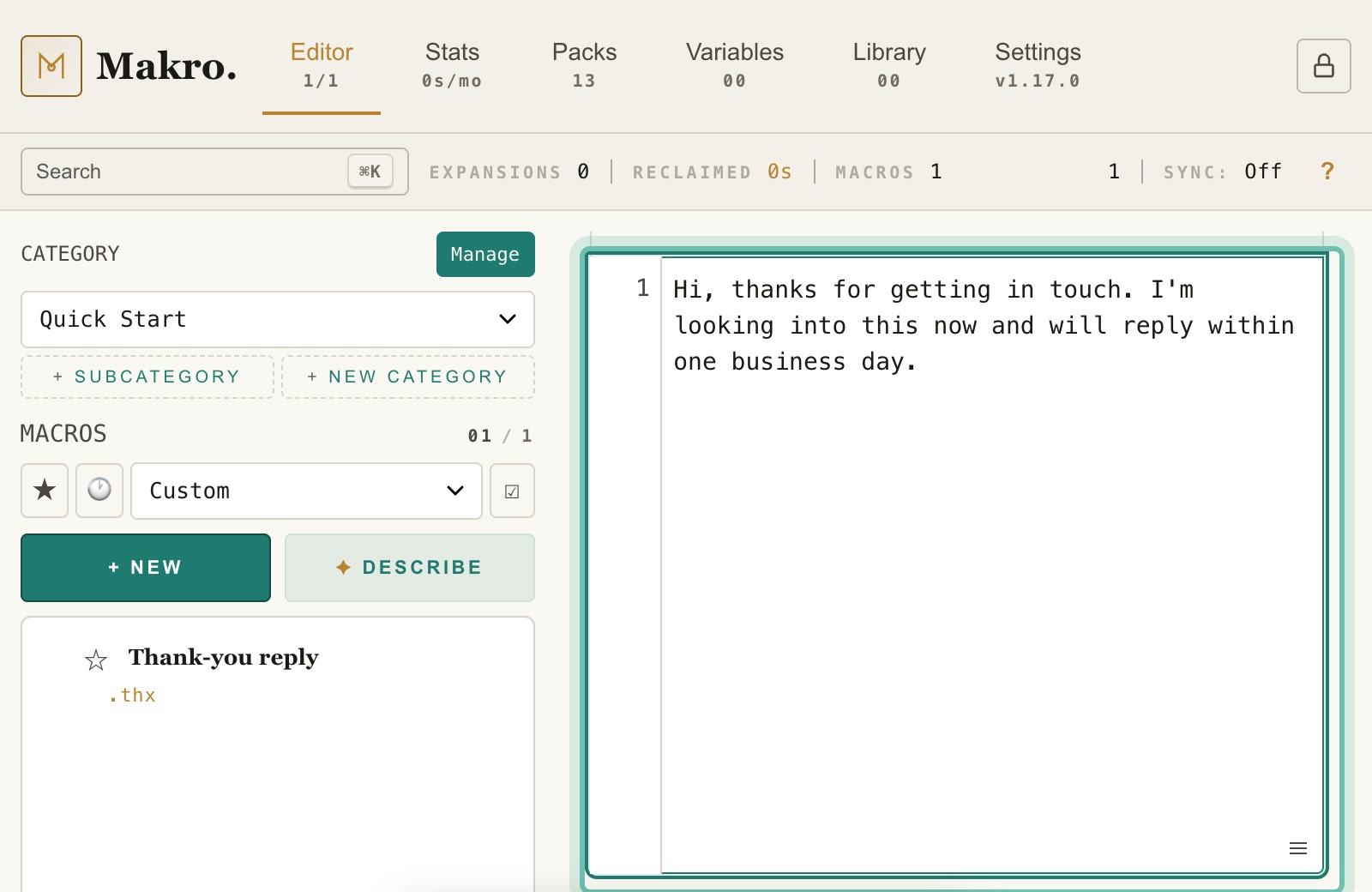
Click "Save". The macro appears in your list.
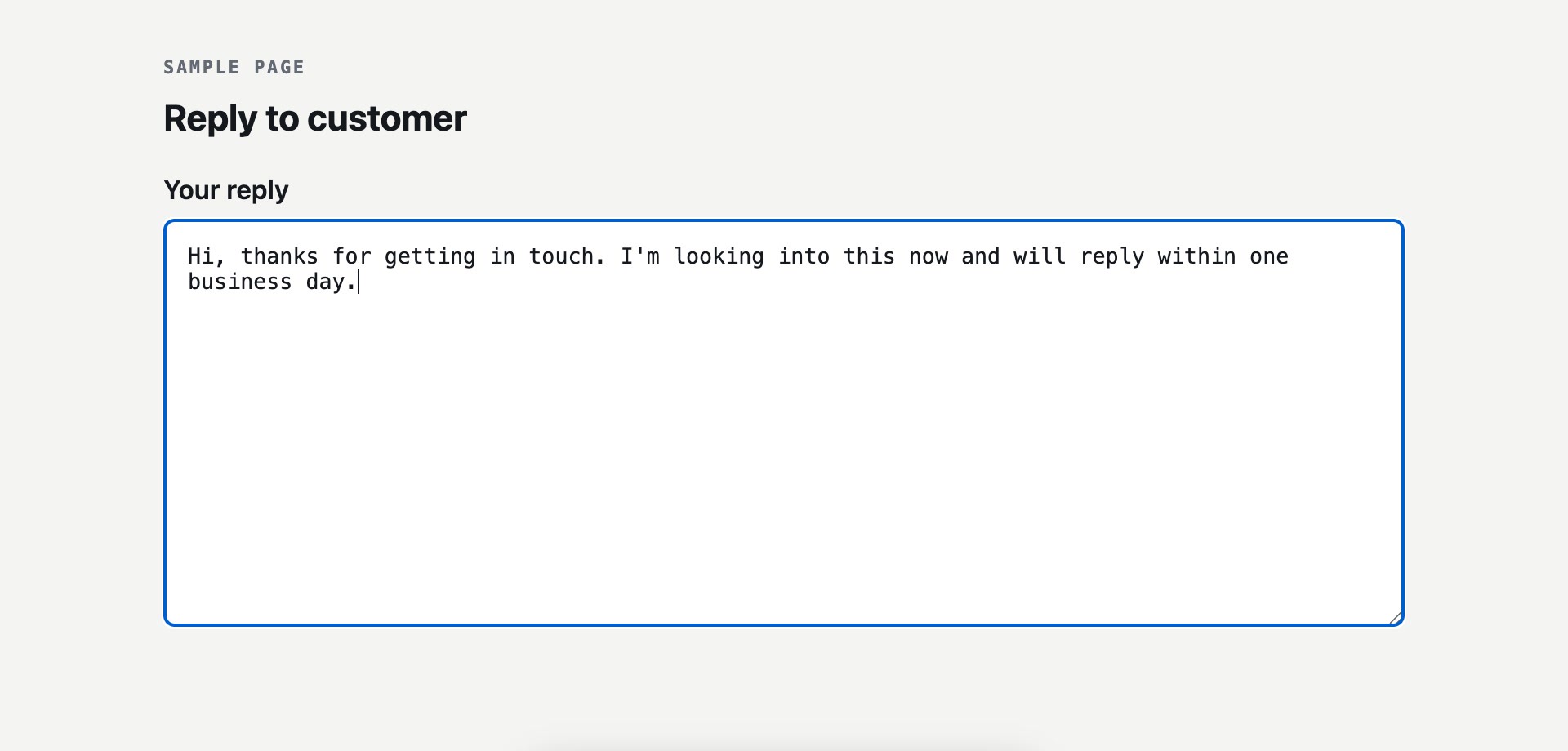
Click into any text box on any website and type .intro.
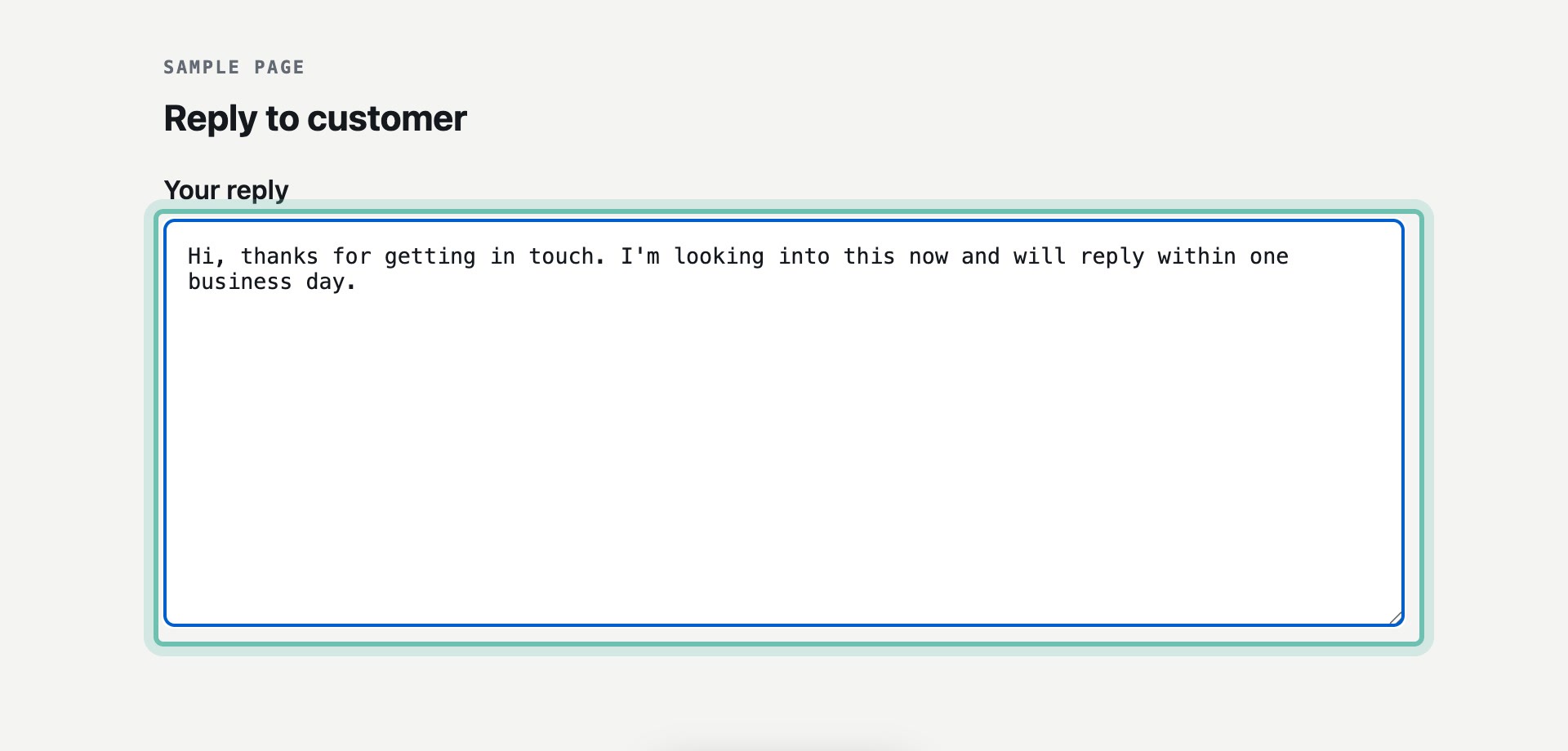
Makro replaces the hotword with the full text as soon as you finish typing it.
Not expanding?
Tabs you already had open may need one reload. Check Blocked sites in Makro settings, since Makro stays off on any site listed there. Some pages never allow extensions, such as the Chrome Web Store and the browser settings pages.